Logic & Triggers
Two separate systems control widget behaviour: display triggers decide when the widget appears, and page logic decides what happens after each page, including conditional branching based on user input.
Display triggers
Set on the Triggers tab in the editor. A trigger is a named, reusable rule — create it once in Triggers in the sidebar, then assign it to any project.
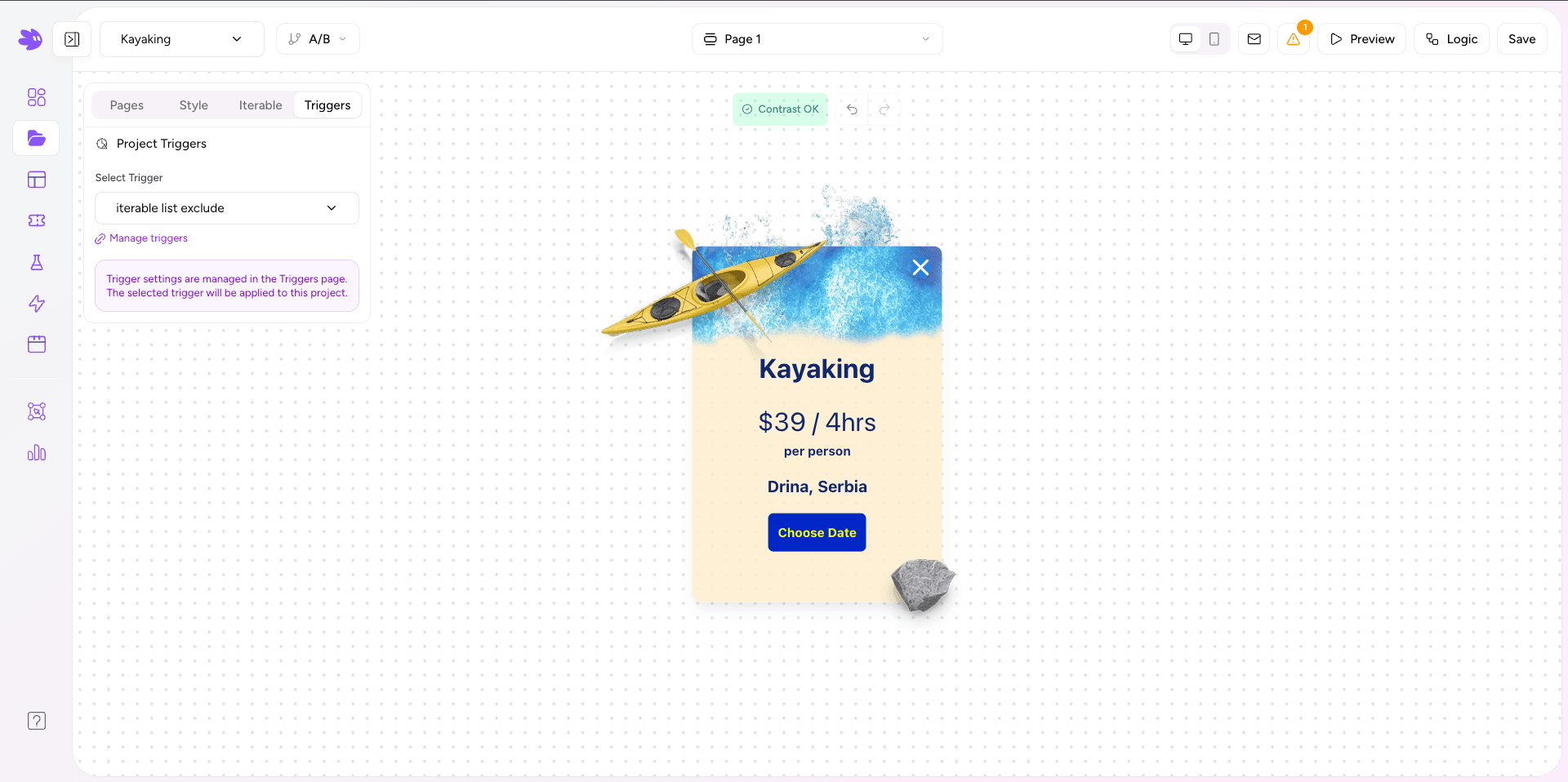
Available trigger types:
| Type | Description | Mode |
|---|---|---|
| URL Match | Show on pages matching a URL pattern — exact, contains, starts with, or regex. | All modes |
| Scroll Depth | Show after the user scrolls to X% of the page. | Popup |
| Exit Intent | Show when the cursor moves above the viewport (desktop). Fires once per session. | Popup |
| Time Delay | Show N seconds after page load. | Popup |
| Custom Event | Show when your code calls window.Jule.trigger('name'). | All modes |
Element-level visibility
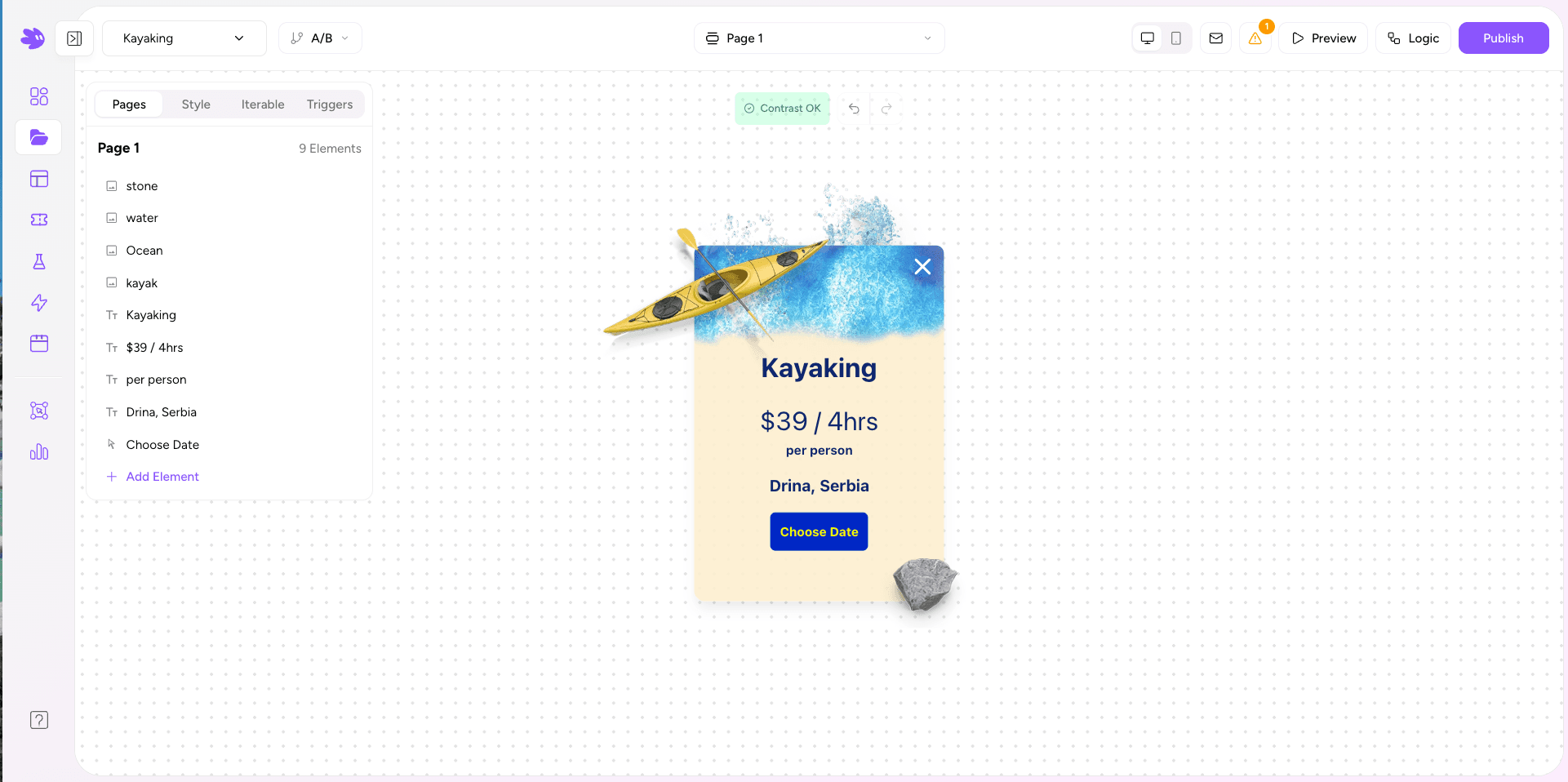
Click any element in the canvas to open its property panel. Switch to the Visibilitytab to show or hide the element based on other field values — for example, only show a "What state are you in?" dropdown if a previous checkbox is checked.
Page logic
Click Logic in the editor top bar to configure what happens at the end of each page. Options per page:
- Next Page — advance to the following page in sequence (default).
- Jump to Page — skip to a specific page. Used for branching flows.
- Show Thank You — display the end-of-flow message and close.
- Redirect — navigate the browser to a URL on submit.
Conditional branching
On the Logic view, add conditions to a page's outcome. A condition compares a field value to a literal and routes the user to a different page if it matches:
// Page 1 ends with a Single Select: "What describes you best?"
// Options: "I'm a marketer", "I'm a developer", "I'm an executive"

If  role === "I'm a developer"                      →  Jump to Page 3 (technical setup)
If  role === "I'm an executive"                     →  Jump to Page 4 (ROI overview)
Default                          →  Next Page (Page 2, marketer flow)